Troubleshooting
When a widget doesn’t show up, it’s almost always one of two things.
The widget library isn’t installed
shinywidgets doesn’t install widget libraries itself; each one is an extra (see Installation). Without it, you’ll see an ordinary ModuleNotFoundError where your app imports the library. If shinywidgets is the one importing it, for example to turn a data frame into a table, the error names the extra to install:
Install the itables package to use data frames with shinywidgets (pip install 'shinywidgets[itables]').Either way, the fix is pip install 'shinywidgets[<name>]', where <name> is the extra from the widget’s guide.
The widget’s JavaScript couldn’t load
Every widget has a JavaScript half that runs in the reader’s browser. Usually shinywidgets serves it from your Python environment, but two kinds of widget need the internet for it:
- Widgets that download part of themselves from a CDN, in Jupyter too. mols2grid, for example, loads its molecule-drawing library from unpkg.
- Classic ipywidgets whose package doesn’t include their JavaScript. shinywidgets loads those from a CDN.
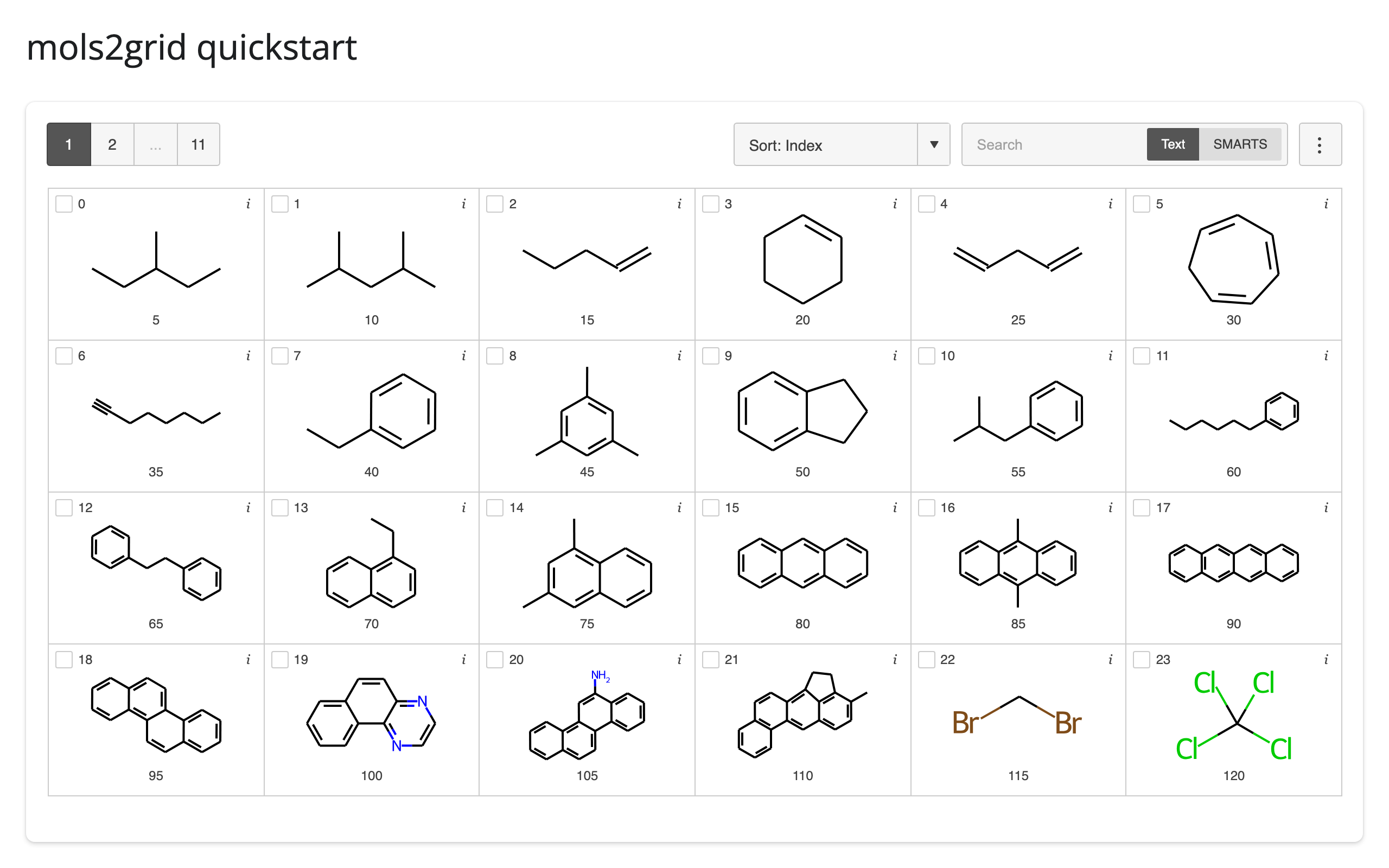
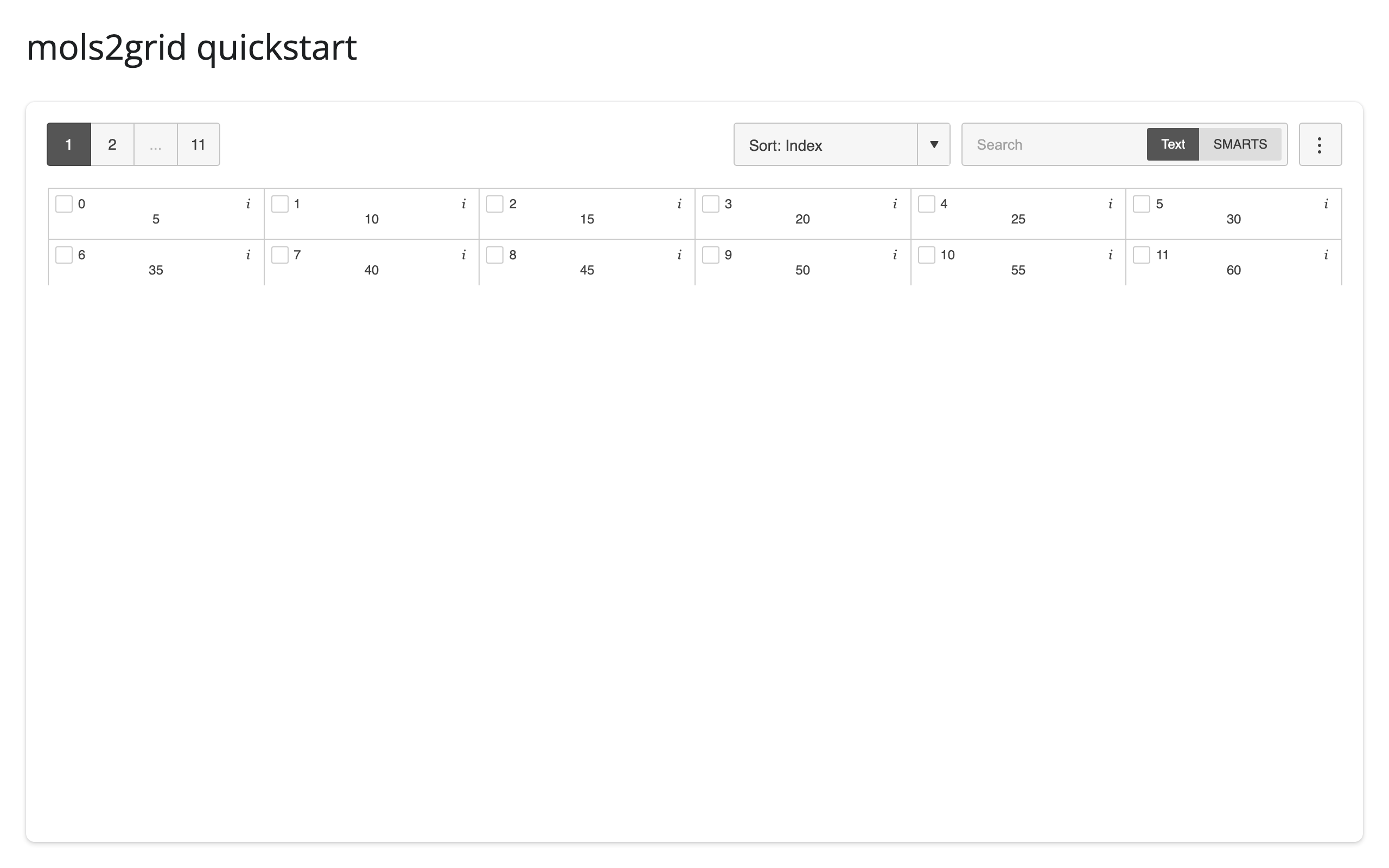
If the reader’s browser can’t reach that CDN, the widget only partly draws, or stays empty, and the browser’s developer console shows the failed request (e.g. Failed to load resource: net::ERR_FAILED). Here’s mols2grid with unpkg reachable, and then blocked: the grid appears, but none of the molecules are drawn.
If your readers’ browsers can’t reach the internet, see Deployment.
Something else
For problems with the app itself rather than a widget, see Shiny’s Debug, troubleshoot, & help. If a widget misbehaves in shinywidgets but works in a Jupyter notebook, please open an issue.